Be sure to check out Mac and Windows scanning clips on our Video Support page by clicking here.
You may find all your answers in one of the videos. If not, come back and read more about SmartScore scanning here...
Which scanner is best for SmartScore?
Nearly every modern scanner will work with SmartScore X2, including most "All-in-one" scanners.
For MAC Users:
To scan in your music, you will need to use the software that came with your scanner. Otherwise, use Apple's "Image Capture"(located in the Applications folder.) The process is simple...
- Scan between 300 and 400 dpi. Select "Black & White" (don't worry, it's actually greyscale.)
- Set your output file type to PDF. Scan all your pages and save the PDF file to a directory/folder/location you remember.
- - NOTE: SmartScore saves to the "Documents" folder by default. You can browse to a dedicated folder if you wish to.
- In SmartScore, push the "Recognition" button (File > Scan Music > Acquire). Push "Add files to list" and select your saved image file; then "Begin recognition".
Click here for step-by-step directions on using Image Capture.
Here's our Mac scanning video...

For WINDOWS Users:
- Select FILE > SCAN MUSIC > CHOOSE INTERFACE > SMARTSCORE’S
- Then select FILE > SCAN MUSIC > SELECT SCANNER > WIAxxxxx (Windows)
- Push SCAN or FILE > SCAN MUSIC > ACQUIRE to begin scanning.
Here's our Windows scanning video...
Windows Users take note: Use the WIA driver...
WIA (Windows Image Acquisition) is a Windows scanning protocol for 3rd-party applications such as SmartScore. TWAIN is the traditional open-source protocol for driving scanners and is used with both Windows and Macintosh computers. When scanner software for Windows is loaded, very often WIA and TWAIN drivers are both installed. For HP and All-in-One owners running Windows, first choose:
FILE > Scan Music > Select Scanner > WIA xxxx.
If your scanner doesn't respond properly, choose:
FILE > Scan Music > Select Scanner > TWAIN xxx
Issues with All-In-One scanners and workarounds (Windows)
Detailed Steps for Using All-In-One Scanners on Windows:
Using SmartScore’s Scanning Interface:
Go to File > Scan Music > Select Scanner. Select “WIAxxx”. Push “OK”.
Push the SCAN button in SmartScore. SmartScore's scanning interface should open and look like this:
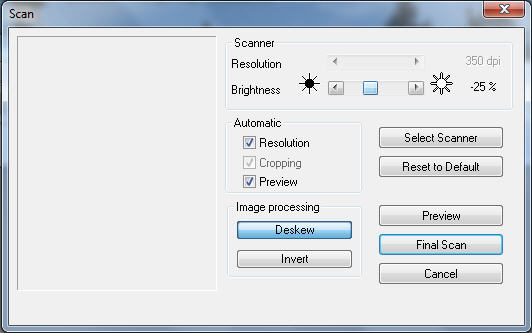
Once you see an image in the Preview pane, push “Final Scan”. Name and save the image. You will be given a choice to begin recognition or to open the image in SmartScore’s Image Editor. Select “Open in Image Editor”.
NOTE: If your scanner does not respond, go to File > Scan Music > Select Scanner. Click on “TWAINxxx”. Push the SCAN button again. SmartScore’s scanning interface should now open. If your scanner still does not respond, skip the following steps and jump to the section, "Can't use SmartScore's scanning interface” below.
In SmartScor's Image Editor, use the Zoom tool to zoom in close and inspect a small part of the image. If black areas are solid black, you are OK. Push the “Recognition” button to start the recognition process. I
f black areas are “salt & pepper” (shot full of holes) then the image was half-tone / dithered by your scanner and cannot be used. Dithering degrades the image and accuracy drops significantly. Click to see example of dithering here. If dithering has occured, try the alternative driver in File > Scan Music > Select Scanner (WIA or TWAIN). Make a Final Scan, save and choose “Open in Image Editor”. Examine the image carefully. If the black areas are “salt & pepper”, close the file and move on to "Can't use SmartScore's scanning interface”.
NOTE: Some all-in-one scanners do not have variable-resolution scanning. If you receive a message stating that resolution (dpi) was too high or too low, you will want to turn off automatic resolution in SmartScore:
- Uncheck Automatic > Resolution and select 300 dpi resolution. Push "Final Scan". This is one more reason why dedicated flat-bed scanners are preferred to All-In-One scanners.
- Some all-in-one scanners may respond normally when SmartScore's automatic resolution is set to an unusual resolution (e.g. 372 dpi, 412 dpi, etc.), but will actually scan at lower resolution and then RESIZE the page to achieve an equivalent resolution/size ratio. SmartScore will catch this during recognition and ask you if "you want to resize the page". In this case, always accept by pushing "Yes".
- Click here to view low-cost flatbed scanners we have tested and know work well with SmartScore.
Can't use SmartScore's scanning interface?
In SmartScore, select File > Scan Music > Choose Interface > Your scanner's
WINDOWS NOTE: If your scanner does not respond when selecting SCAN in SmartScore, try selecting the WIA driver from the menu FILE > Scan music > Select scanner.
When scanning outside of SmartScore (with the scanning software that came with your scanner) you will have the option of selecting an output and file types. These options are often found by choosing “Custom” instead of “Standard (or “Beginner”) scanning mode.
For Mac Users running Snow Leopard (OS 10.6) or later
If you are operating a late model all-in-one scanner and your scanner does not respond when you push the "SCAN" button, you can bypass SmartScore's scanning interface and create recognizable image files using the software that came with your scanner as follows:
- Scan each page between 300 and 400 dpi in Grayscale (sometimes referred to as "Document" mode. Choose "Black & White" if using Apple's Image Capture ).
- Select the PDF file format for output. You should be able to scan multiple pages into a single PDF file. When you have finished, save and name the PDF file to your desktop or easily accessible location.
- Open SmartScore and push the "Recognition" button, browse to the file and double click on it. The PDF will immediately be converted to multi-page .TIF format.
Click here for details on using Apple's Image Capture application.
Output
When scanning outside of SmartScore, always choose Grayscale (8-bit). This will result in solid areas of black. Do not choose “Halftone”. Halftone-dithered scanning breaks up black areas into various sized dots which at large scale will appear as shades of grey but seriously degrades the image for recognition purposes. SmartScore will automatically "threshold" gray images to 1-bit black before recognition. This avoids the pitfalls of dithering. To read more about dithering, click here.
Resolution
Select a resolution of between 300 and 600 dpi depending on the size of the original music. Music with smaller staves and symbols (like minature scores) should be scanned at higher resolutions. Average sized sheet music should be scanned between 300 to 400 dpi.
File Type
Select "PDF" for your output. Continue to scan each page, then save your PDF file somewhere on your computer where you can find it (e.g. Desktop). Then push the "Recognition" button in SmartScore. If your scanning software cannot produce PDF files, save each page as an Uncompressed .TIFF file.
When all else fails, use the software that came with your scanner.
First, try accessing your scanner's software through SmartScore:
Go to FILE > Scan music > Choose interface = Your scanner's. This option MAY work, but depending on the scanner, you may still get halftone/dithering (see below).
If neither scanning option works in SmartScore (Scanning directly or using File > Scan music > Choose interface), then you will be left with one of two choices A) Consider purchasing a newer scanner (see our compatible scanner list here) or B) Use the scanning software that came with your scanner. If you choose the latter, be sure to follow these steps:
- Scan in Grayscale. Sometimes it is referred to as "Document" or"Line Art". If using Apple's Image Capture, select "Black & White").
- Set your resolution between 300 and 400 dpi (Depends on the size of the original publication: If print is smaller, use higher dpi).
- Select PDF as an image file format. When you have finished scanning all the pages of the score, save and name the PDF file to your desktop or easily accessible location.
- Open SmartScore and push the "Recognition" button, browse to the file and double click on it. The PDF will immediately be converted to multi-page .TIF format.
NOTE: It is always recommended to scan using SmartScore's scanning interface (File > Scan Music > Choose Interface > SmartScore's). This environment offers powerful auto-resolution, auto-deskew, cropping, exposure and multiple-page scanning functions. We like the newer Canon and Epson scanners because they work well with SmartScore's scanning interface under Windows XP and MacOS X platforms.
Click here to view low-cost flatbed scanners we have tested and know work well with SmartScore.
What is "Halftone dithering" and why it's a pain...
If you have scanned a file and SmartScore's recognition results are particularly poor (e.g. 50-75% accuracy), it is very likely the image created by your scanner was "halftone/ dithered". Basically, this is turning your clearly-printetd score into newsprint (black areas become motled, dotted or shot full of holes). Many scanners default to "dithering" because manufacturers assume you are using their scanners for photos. OCR (optical character recognition) imagery should NOT be dithered.
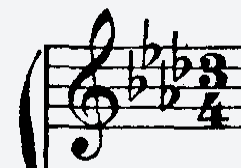
The above image is what a typical closeup of properly-scanned music should look like. Notice that black areas are solid and not grainy. Lines are thick and not broken.
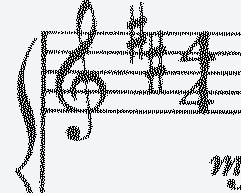
The above image was halftone dithered. Black areas have been reduced into "salt and pepper". This technique "smooths" round edges and is great for photos or web graphics, but critcal features for OCR are lost.
All scanners are different and depending on the model, they may or may not give you many options. If so, follow these general rules:
- If you are working in Windows, make sure you have selected the "WIAxxxx" driver from FILE > Scan Music > Select Scanner
- If you still have halftone / dithering, you will probably not be able to use SmartScore's scanning interface. Click here for instructions (Scanning outside SmartScore).
- For general information about scanner drivers, click here.
Scanning orchestral scores that are bigger and wider than the scanner. How to recognize large-format scores in SmartScore X2.
We have posted a method where "conductor's" scores can be manageably scanned and reconstructed. Click on of the following links to access this method either as HTML pages or as a QuickTime movie.
When printing my score on "normal-sized" paper, the music does not fit on the paper.
Some scanners (usually less expensive all-in-one scanners) cannot scan in variable, discrete amounts. e.g. they can scan at 300 and 600 dpi, but not 425 dpi. If auto-resolution is used when using SmartScore's scanning interface, these scanners may RESIZE (e.g. increase) the image area to acheive the equivalent of 425 dpi while still scanning at a lower resolution.
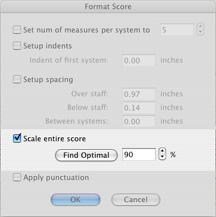
Remember: Area x Resoution = Image size. In SmartScore X2, we have added a "rescaling" feature that will optimize the ENF file to exactly fit within the margins of your default page size, if when printing, your score outsizes or undersizes the paper it's being printed on. "Scale Entire Score" is found under FILE > FORMAT SCORE.
 Contact Us:
  Tech Forums:
Please report any problems to webfoot@musitek.com
Website by SilverFrog